AI co-work panel
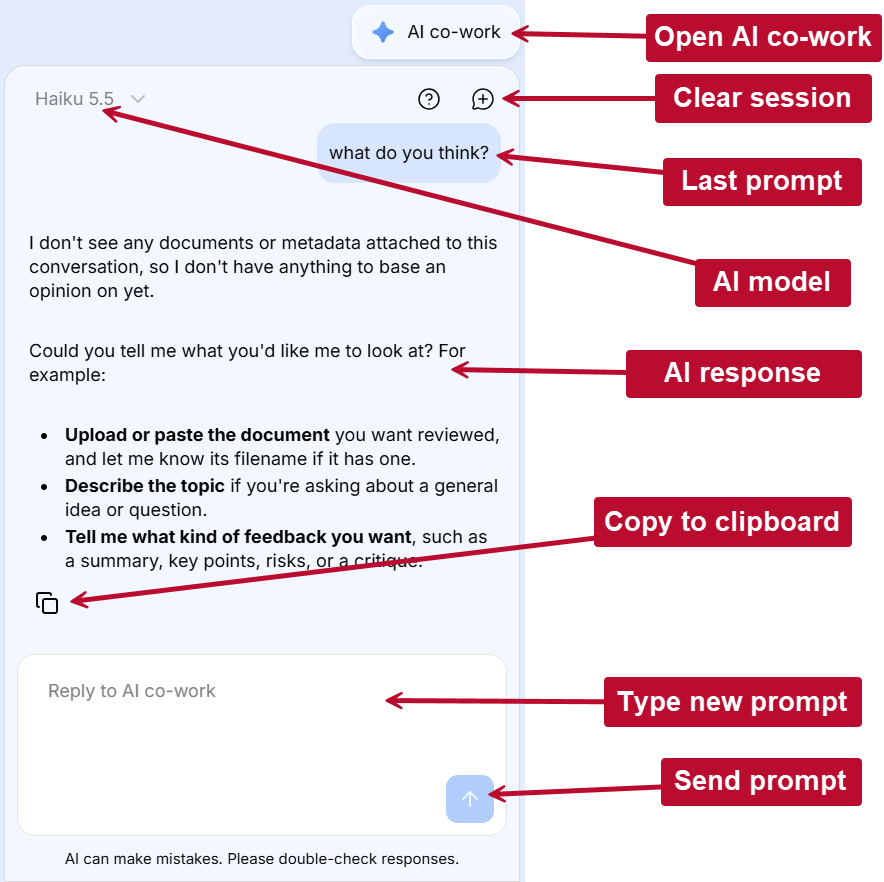
AI co-work in FileHold provides a familiar artificial intelligence chat interface to ask questions about one or more documents and metadata. Documents are added to the chat directly from any document list and can be added as-is, converted to an efficient markdown format, or added only as metadata. The results of the chat can be copied to the clipboard for further processing.
AI co-work is accessed from the Nexus client and is a licensed option. Contact sales@filehold.com if you would like to add AI co-work to your license.
Opening the AI co-work panel
The panel can be opened using the AI co-work button on the top right of the screen. The last session will be available. You can also select one or more documents and add them to the existing chat or a new chat. After selecting the documents, right-click and select AI co-work or select AI co-work from the menu bar. You will be given the choice of adding the documents to an existing chat or starting a new one.
Choosing the AI model
If your administrator has given you a choice of more than one model, you can select the model you would like to use before you send a prompt from the list in the top left corner of the panel.
Choosing how to attach information from the document management system
There are three choices for attaching file to the chat:
- Original format - Useful when the AI model is able to read the original file and the original file contains specific formatting or images that will be the subject of the prompt.
- Markdown format - This strips the documents of extraneous information and keeps only text and limited format information. Choose this option when a file format is not supported by the AI model, or you would like to reduce the number of input tokens sent to the model. Source file formats include those available for to view with the FileHold viewer.
- Metadata only - This method collects the metadata and system data in the document list columns defined in the view and packages them as JSON (a format easily readable by most models). Since only the fields in the view are included, you can minimize the amount of data sent or expand the data for a more indepth analysis as needed.
In some cases you may not be able to choose the original format or the markdown format, but you can mix and match the data that is attached. For example, you could select all the documents in one folder and then all the documents in a second folder and ask the AI model questions about the two models at the same time.
Working with files in the prompt
Once a file is added to the prompt you will see it appear as a box with the document name. In the case of metadata, you will see the document schema used in the name. When more files than will fit in the panel are added to the prompt, you can use the arrows to scroll. When you hover over the box an X will appear in the box. Pressing this X will remove the file from the chat. It does not modify the document in the library in any way.
Sending a prompt
Simply type your prompt in the chat or copy and paste from elsewhere. Press enter or the send button to pass the prompt and the document data to the AI model. The send button will change to a stop button in case you want to stop the AI model from processing your data.
FileHold sends the data you provide to the AI model according to how your administrator has configured the connection to the model. The model may return errors that are out of the control of FileHold. These will be displayed in the panel.
Caution should be taken when using the AI-cowork panel as you are effectively giving the model permission to do what it wants with the data you provide. Your administrator should advise you if you are allowed to provide sensitive organization information to the model. FileHold has no control over what the model does with your data or the responses the model provides.
Copying the prompt and response
When you hover over the prompt or response in the chat, a copy button will appear. When you press it, the information will be copied to your clipboard. The response data is provided in a rich and plain text format. If you paste the results to a text editor, you will get the plain format. If you paste it to a tool like Microsoft Word, the formatting will be retained.