Creating a drill down menu
Drill-down menus offer a multi-level tree structure for the user to select the metadata value from. When a user makes a selection at the first level, a second level of choices will appear that are related to the choice at the first level and so on up to eight levels deep.
For example, imagine a field used to select a specific department in an organization. The organization is broken into two organizational units: North America and Europe. The organizational units operate largely independently and each has its own independent departments. Both have their own finance and HR departments. Europe also has an R&D department and North America has a Manufacturing department. Europe has Sales departments broken into Central Europe, the United Kingdom and Southern Europe. North American Sales are broken into East and West.
Selecting a drill-down option:
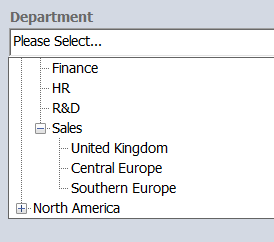
Displaying a selected option:

To create drill-down menus
- In the Web Client, go to Administration Panel > Library Configuration > Metadata Fields.
- Alternatively, in the FDA, go to Administration > Manage Schemas > Metadata Fields.
- In the Add Metadata Field pane, enter a Name for the metadata.
- Enter a Description for the metadata.
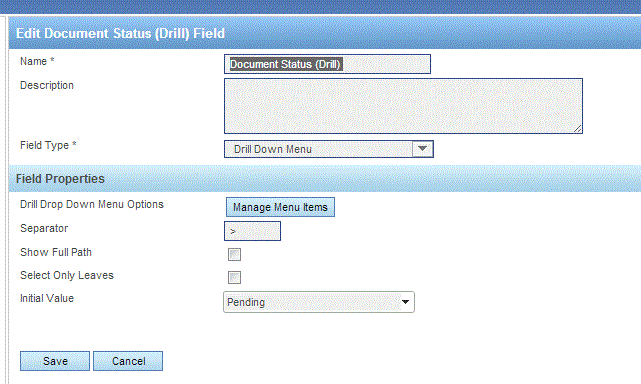
- Select a Drill Drop Down Menu.
- From the Web Client, click .
- From the FDA, click the Field Properties tab. Add, Edit, Delete, and organize the order of the drill-down list.
- Type in the first entry for the drill-down menu and click . Continue to add menu items until all selections are added.
- Select one of the existing drill-down menu items to create the "branches" and/or "leaves" (sub-menu items) of the drill-down "tree" structure.
- Type in the first "branch" or "leaf" name and click . The item will appear under the selected menu item and the selected menu item will display a plus sign next to it.
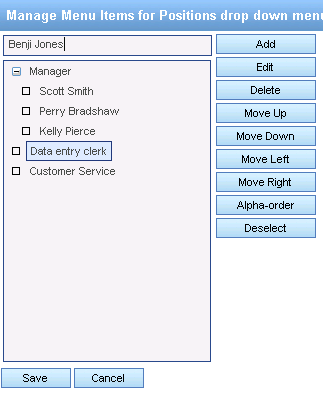
- Continue to add sub-menu items to all the menu items until completed.
- Enter up to three characters as a separator. For example, -, _, < or /. The default is >.
The separator is used when displaying the drill-down menu value or as the resulting value from using a merge tag when the show full path option is selected. It is also used when specifying a drill-down menu value in an import.
- By default, only the selected node of the drill-down menu tree will be displayed. If you want to show the full path of the drill-down menu selection in the metadata field box, select the Show Full Path check box. For example, if a user selects France then Île-de-France then Paris they would see the value shown as Paris by default. If they checked Show Full Path the value would be shown as France>Île-de-France>Paris.
- By default, you can select any option in the drill-down menu regardless of what level it is at. If you only want to be able to select leaf values, values that have no children, check Select Only Leaves.
- Select an Initial Value where needed. When you do this, the user will not be required to select any value if they simply want to accept the configured initial value.
- From the Web Client, click .
- From the FDA, click .