Database lookup on the schema
The Lookup tab in the schema properties allows you to enable a Lookup button on the metadata panel when an end user adds or updates document metadata. The Lookup button takes values from up to five fields in the metadata panel and uses them to retrieve information from a database. The retrieved information can then set the values for any fields on the metadata panel as though the user had set them manually. This reduces the time it takes to fill out the metadata values and reduces the chance of user error.
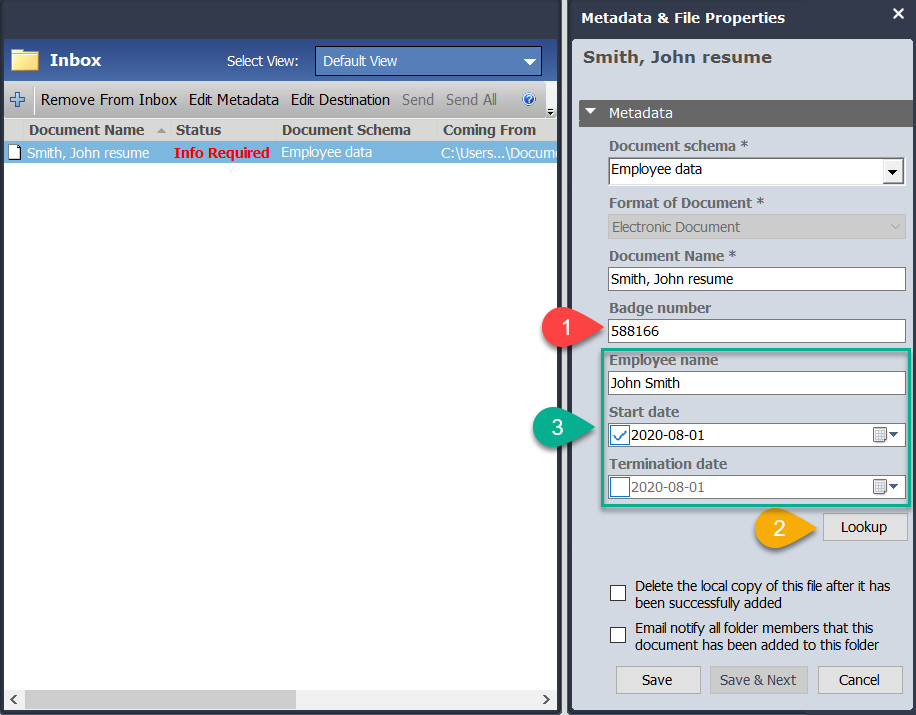
A lookup using a single metadata field as the key to the other data is simplest to configure. You need to use a custom query if you require two to five fields as keys to the lookup.
Examples of where you can use a schema lookup
Generally, you are including metadata fields for a document when you want to be able to use their values when you search for documents. When one or a small number of values can be used to retrieve many values from a known source, you should consider a schema lookup. Here is a small sample of cases where a lookup can be used.
- You have employee data stored in a human resources management system. You would like your HR team to be able to enter an employee number and retrieve their name, start and termination dates.
- Project information is available in your ERP system. You want users to enter the project number and have the project name, customer name and customer contact email automatically retrieved from the ERP system.
- You are adding documents for assets you have under management. You do not have any asset management software, but you do not want users to enter asset details more than once. Users enter the asset name, id, location and asset owner on the first asset document, but you want to look up that information for all future documents added for the asset.
- You use a property management system. Construction is related to a property lease and can include one or more construction jobs. You would like construction documents to have the lease id, lease name, job id, and job name metadata information populated. The lease id and job ids are selected from dropdown menus. You want to automatically lookup the lease and job names.
General information about schema lookups
- Schema lookups are performed on-the-fly. Data does not get synchronized like a dropdown menu.
- After performing a lookup, users can still modify any of the retrieved values. The system does not verify if the values match the original data record and it will not update those values when the record is modified in the external database.
- Database managed dropdown menu values can be looked up. These values automatically update if there are changes in the source system as normal. See Automating Lookup Value Changes for more information.
- The lookup can be performed when adding or editing the metadata of one or more documents. See Entering Metadata Using Database Lookups for more information.
- When creating metadata fields for the schema that is using database lookups, any type of metadata field can be used (text, number, drop down list) as long as it matches the format of the lookup column. For example, if you have a number type metadata field mapped to a lookup column that uses letters then the lookup functionality does not work. In this case, using a text field for most metadata fields works best as it accepts any letter or number combination.
- If you are looking up a database managed dropdown menu, you must map its source ID value not its choice value.
- Schema lookups are more secure than manage import lookups as the user permissions to the source database are controlled from the server.
- There are a wide variety of data sources that can be used for a schema lookup including Microsoft Access database, Microsoft Excel table, or text file. Care should be taken to ensure the source data is managed with sufficient quality to satisfy the needs of your production system. If the source data is corrupted, locked, missing, etc. the Lookup button gives the user an error. See Solution Design Resources for more information.
- The key field for the lookup cannot be a field that allows for multiple selections. The lookup does not work with either a table or custom query if there is more than one value selected in the drop-down list. Similarly, you cannot return a result that assigns multiple values to a dropdown.
Schema lookup configuration
To configure database lookup for the schema
- In the Web Client, go to Administration Panel > Library Configuration > Document Schemas > Schema Name > 8. Lookup.
- Alternatively, in FDA go to Administration > Manage Schemas > Schema Name > Lookup tab.
- To enable schema database lookup, select the Enable Schema Lookup check box.
- Select the database source:
- To connect to a SQL database server, select FileHold Configured SQL Server Connection.
- To use ODBC, OLE DB, SQL, or Oracle select User Configured Database Server Connection. In order to use this setting, you need a license with this feature enabled. Upon request, a new license file can be sent to you at no charge. To request a license with this feature enabled, please email licensing@filehold.com.
It is possible to connect FileHold to a wide variety of data sources using ODBC or OLE DB connections, however, there is no way to guarantee any arbitrary data source is fully compatible with FileHold. Make sure you confirm technical compatibility before committing to a solution design using an ODBC or OLE DB. In some cases FileHold may be able to support an incompatible data source through a product change. See Understanding connecting to external data for more information.
- If you selected FileHold Configured SQL Server Connection, do the following:
-
Enter the Server Name. The Server Name field contains the name of the machine hosting the database from which you are getting the values. The format of the server name is the name only and does not require forward slashes. If the database is hosted on the same server as FileHold, you can use (local) (include parentheses).
-
Enter the username for the SQL server.
-
Enter the password for the SQL server.
-
Select Use Integrated Authentication check box if applicable. If you chose not to use integrated authentication and decide to enter the user name manually, the format for the database username field is just “username” (no quotes) (not ''//domain/username'). The FileHold Service Account must be the db_owner of the database being looked up. This can be done in the database software management console looking at the database Security > Logins properties.
- If you selected User Configured Database Server Connection do the following;
-
Select the Data Provider from the list: .Net Framework for Data Provider for ODBC, .Net Framework Data Provider for OleDb, .Net Framework Data Provider for Oracle, .Net Framework for Data Provider for SqlServer.
-
Enter the Connection String to the external database. See Understanding connecting to external data for more information.
- Click Verify Connection.
-
If the username and password is correct, the message “Connection successful” displays.
-
If the username and password is incorrect, the message “Login failed for user “<username>” displays.
-
If you receive a “Cannot connect to specified source” error, this indicates that there is a connection problem to the database. This means that the database name, server name, db admin user name or the db admin password is incorrect. It does not have to do with the select table, field caption or Field ID values. To troubleshoot this issue; confirm all database-related names are correct and ensure that the FileHold Service Account is at least a "data reader" of the MS SQL database being looked up. This can be done in Microsoft SQL Management Studio looking at the database Security > Logins properties.
- Select the Database to be used from the list. Some data sources do not have a list of databases.
- Select one of the following options:
-
Single Table – If you are using a single table or view to connect to and you only have a single lookup by field, select this option then select the table or view name from the list.
-
Custom SQL Query – If you need to use a specific SQL query to return the information from the database or you have more than one lookup by fields, select this option.
In order to use this setting, you need a license with this feature enabled. Upon request, a new license file can be sent to you at no charge. If you need help to set this up, contact our professional services team at support@filehold.com. Your FileCare subscription does not include assistance with writing custom database queries.
- If Single Table was selected, do the following:
-
In the Select Table field, select the name of the table or view.
-
In the Lookup By field, select the database column to look up in the database. If you are using a drop down database managed metadata field, this value is set to the same value used as the Lookup By field defined in the drop down menu metadata field. This should be a column with unique values or the primary key.
- In the Lookup Using field, select the metadata field that corresponds to the metadata field used in the schema for the lookup drop down list. If you are using a document control number that is manually generated, you can use that value as the lookup field as long as there is a corresponding match in the lookup database.
- If Custom SQL Query was selected, do the following:
- Enter the query. The query must be able to return exactly zero or one rows. The query must include one or more parameters depending on the version. These are the values replaced by the Lookup Using field at runtime. The following example illustrates selecting a single row with the parameter. The query uses internal FileHold data for simplicity. It takes the internal id value for a user and returns the username.
SELECT [ObjectName] AS 'UserName'

FROM [ch_librarymanager].[dbo].[AdamObjects]

WHERE ObjectId = @InternalUserId
FileHold does not provide syntax coloring or any similar assistance with creating the custom query. It is either syntactically correct or it is not. We recommend you prepare your query using a tool that does provide these facilities. You can debug the final query using a tool like the SQL Server Profiler or similar tools for other databases. The exact format of the parameter may vary between data providers. The example is for SQL Server.
If you need help to set this up, contact our professional services team at support@filehold.com. Your FileCare subscription does not include assistance with writing custom database queries.
- Select the Parameter Type from the list. Your choices are integer or text. If the type is Integer the user receives an error if they try to use a non-integer for the lookup. If the type is Text the parameter is enclosed in quotes in the custom query. Regardless of metadata field type, the selected Lookup Using field is converted to integer or text where possible. FileHold does not attempt to validate if the query is semantically correct only that it meets the basic syntax requirements.
- Select the Parameter Name from the list. You do not need to specify the prefix character. This is done automatically. For the SQL in the preceding example the parameter name to specify in this field would be InternalUserId.
- In the Lookup Using column, select the metadata field name. that corresponds to the metadata field used in the schema for the lookup drop down list. If you are using a document control number that is manually generated, you can use that value as the lookup field as long as there is a corresponding match in the lookup database.
- Enter up to 5 parameter types for the lookups. Note that the custom query must support the additional parameters. The following is an example custom query that could be formed with this feature. Assume the database is SQL server and three parameters, PARM1, PARM2, and PARM3 have been defined, the administrator would be able to form a query as follows:
SELECT * FROM table1 t1 JOIN table2 t2 on t1.fld1 = @PARM1 and t1.fld2 = @PARM2 and t2.fld3 = @PARM3.
- Click Verify Query.
- Assign the link between the source database query and the Destination Metadata Fields used in the schema.
The fields available as a destination are listed on the right. For each field that you would like to be set when the user presses the Lookup button, choose a Source Column from the left. The source column fields are the available fields in the custom SQL query or single table.
You may want to use a custom query with multiple parameters where each parameter may be optional then assign values back to the metadata fields passed as parameters. For example, for a customer document you want to allow the user to select the customer number or customer name in order to return their address. Since you want both the customer number and customer name values in the metadata for the document, you have to map those values from the query to ensure they are always both filled out. If you do not see these fields in the destination list, you may need to upgrade to version 16.2 or higher.
If the destination is a database dropdown menu, the map text indicates that you must map using the "lookup by" value. This is the lookup by value defined in the dropdown menu field.
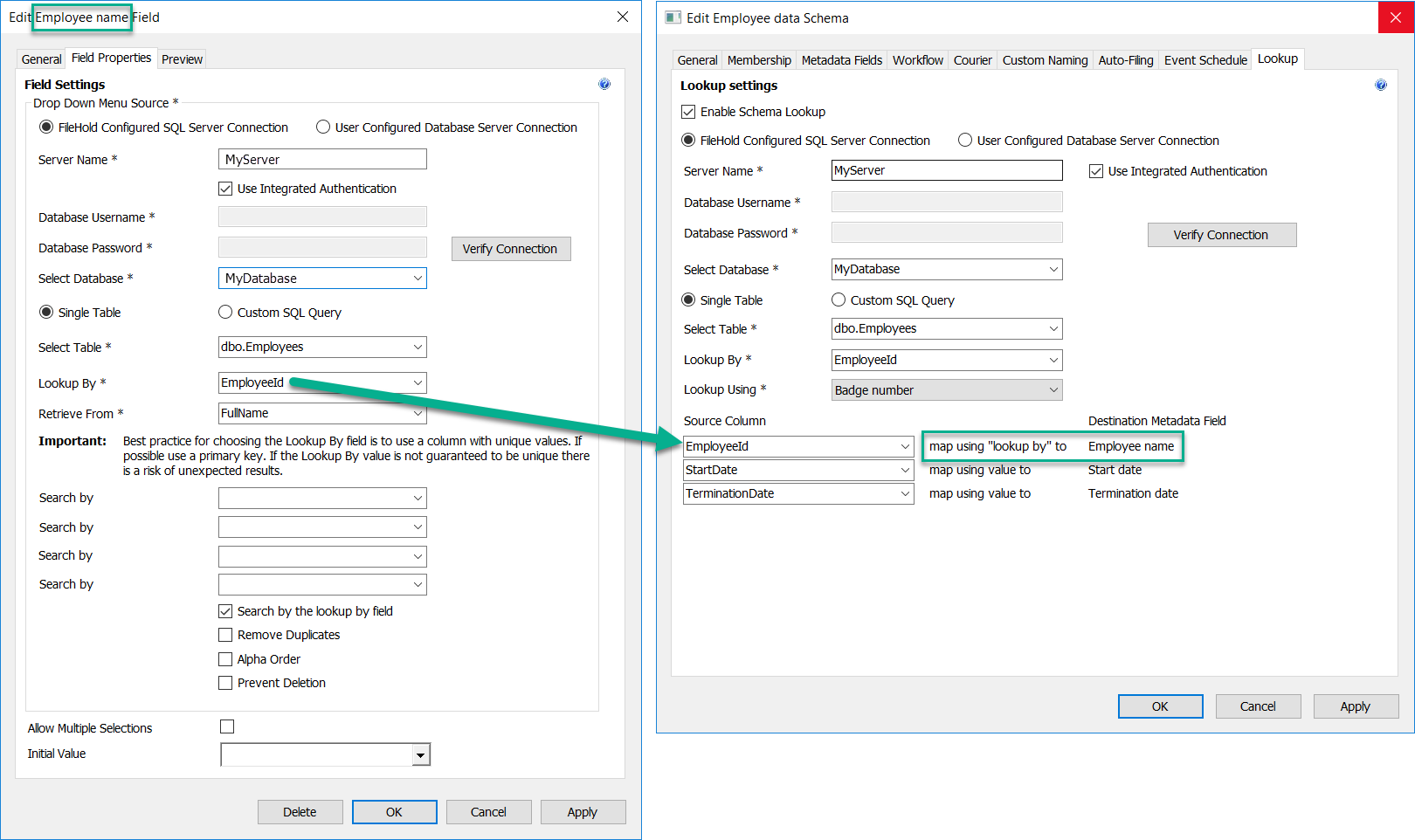
There is not necessarily any relationship between the "Lookup By" field in the schema lookup and the "Lookup By" in the dropdown menu metadata field definition. However, the table or query used for the schema lookup, must contain a column with data that matches the lookup by value for the metadata field in order to correctly complete the mapping.
- From the Web Client, click Save.
- From the FDA, click OK.